

Migrating from Monolith to Microservices with GKE: Hands-on practice
Strangling the Monolith: How to Safely Migrate to Microservices with Google Kubernetes Engine.
🧱 Migrating from Monolith to Microservices with GKE: Hands-on practice
In this article, I’ll walk through the practical process of migrating from a monolithic architecture to microservices using Google Kubernetes Engine (GKE). This hands-on guide follows a challenge lab from Google Cloud’s Study Jam program.
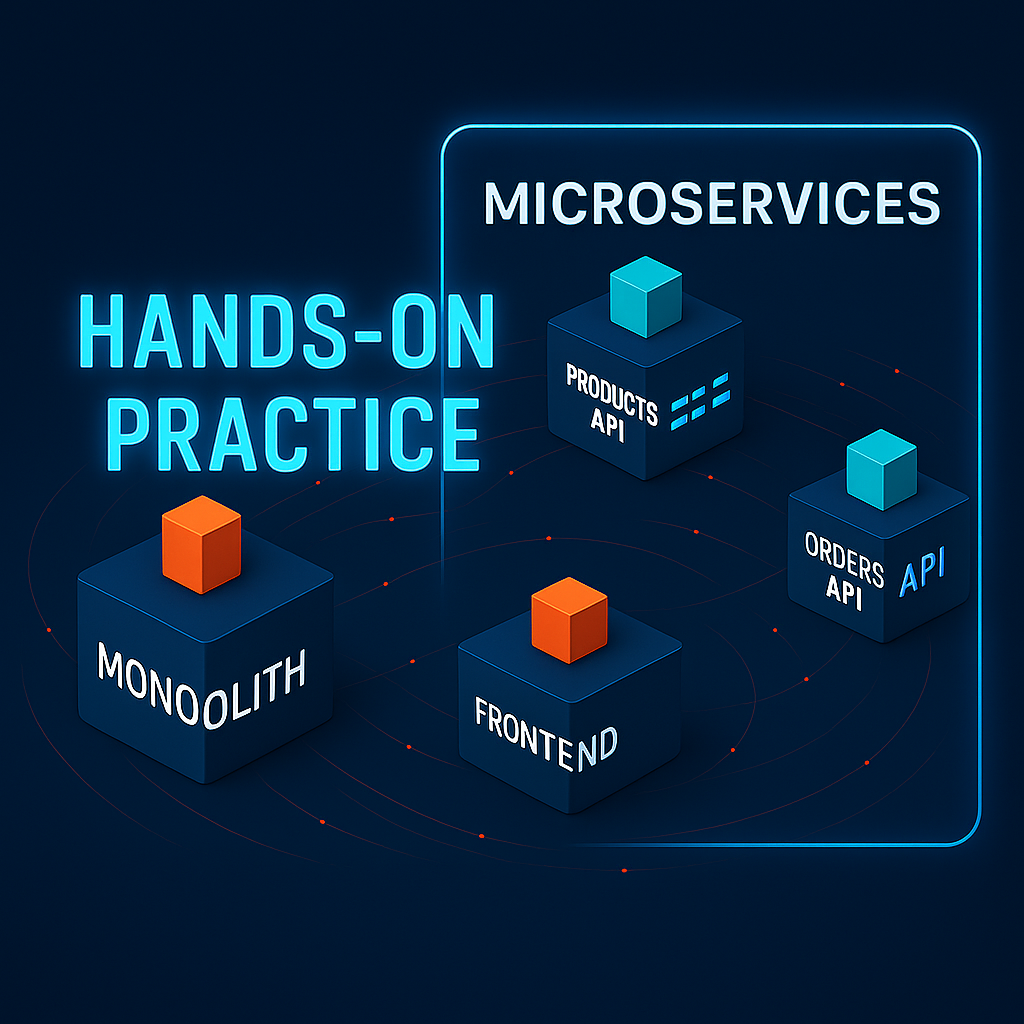
If you’re unfamiliar with some terminology or concepts, you might want to check my previous article where I covered the fundamentals of monolithic architecture and the reasons for transitioning to microservices.
https://blog.kanapp.net/posts/migrating-from-monolith-to-microservices-with-gke-core-concepts
🏷 Project Overview
We’ll be working with the monolith-to-microservices project. In this project, developers have already completed the refactoring work to separate monolithic code into microservices, providing us with the following structure:
monolith-to-microservices/
├── monolith/          # Monolithic version
└── microservices/
    └── src/
        ├── orders/    # Already separated Orders microservice
        ├── products/  # Already separated Products microservice
        └── frontend/  # Already separated Frontend microservice
Our sample application is “FancyStore”, an e-commerce application. The challenge requirements specify:
- Cluster location: europe-west1
- Resource naming convention: team-resource (e.g., fancystore-orderservice1)
- Machine type: e2-medium (for cost efficiency)
Our goal is to decompose the monolith into three microservices:
- Orders service — Processing customer order data and history
- Products service — Managing product catalog and information
- Frontend service — Providing the user interface
🏷 Setting Up the Development Environment
First, we need to clone the repository and set up our environment:
# Set project ID
gcloud config set project qwiklabs-gcp-00-09f9d6988b61

# Clone repository
git clone https://github.com/googlecodelabs/monolith-to-microservices.git
cd monolith-to-microservices

# Install latest Node.js LTS version
nvm install --lts

# Enable Cloud Build API
gcloud services enable cloudbuild.googleapis.com
These commands set up the project, fetch the source code, ensure we have the right Node.js version, and enable the Cloud Build API for container image creation.
🏷 Containerizing the Monolith
Before decomposing our application, we should first containerize the existing monolithic application.
Why? Suddenly switching to microservices carries significant risk. A more cautious approach is to containerize the existing monolith without code changes and verify that it works properly in a container environment. Only then should we begin separating individual services. This is known as the Strangler Pattern — a migration strategy for gradually replacing legacy systems with new ones.
By containerizing the monolith first, we can continue operating the system during the transition period while extracting and deploying microservices. We can then disable functionality in the monolith or redirect to microservices, eventually removing the original monolith when all features have been migrated. While this process looks simple here, in reality it can take months.
# Navigate to the monolith directory
cd monolith

# Build and push container image
gcloud builds submit \
  --tag gcr.io/${GOOGLE_CLOUD_PROJECT}/fancy-monolith-203:1.0.0
This command builds a Docker container from the Dockerfile in the monolith directory and pushes it to Google’s Artifact Registry with the tag fancy-monolith-203:1.0.0.
Cloud Build compresses the directory files, moves them to a Cloud Storage bucket, and then builds the image using the Dockerfile. The — tag flag specifies the hostname (gcr.io) for the Docker image.
🏷 Creating a Kubernetes Cluster
Now let’s create a GKE cluster to host our application:
# Enable Containers API
gcloud services enable container.googleapis.com

# Create GKE cluster with 3 nodes
gcloud container clusters create fancy-cluster-685 \
  --zone=europe-west1-b \
  --num-nodes=3 \
  --machine-type=e2-medium

# Get authentication credentials
gcloud container clusters get-credentials fancy-cluster-685 --zone=europe-west1-b
This creates a Kubernetes cluster named “fancy-cluster-685” with three e2-medium nodes in the specified zone. The second command configures kubectl to communicate with this cluster.
gcloud compute instances list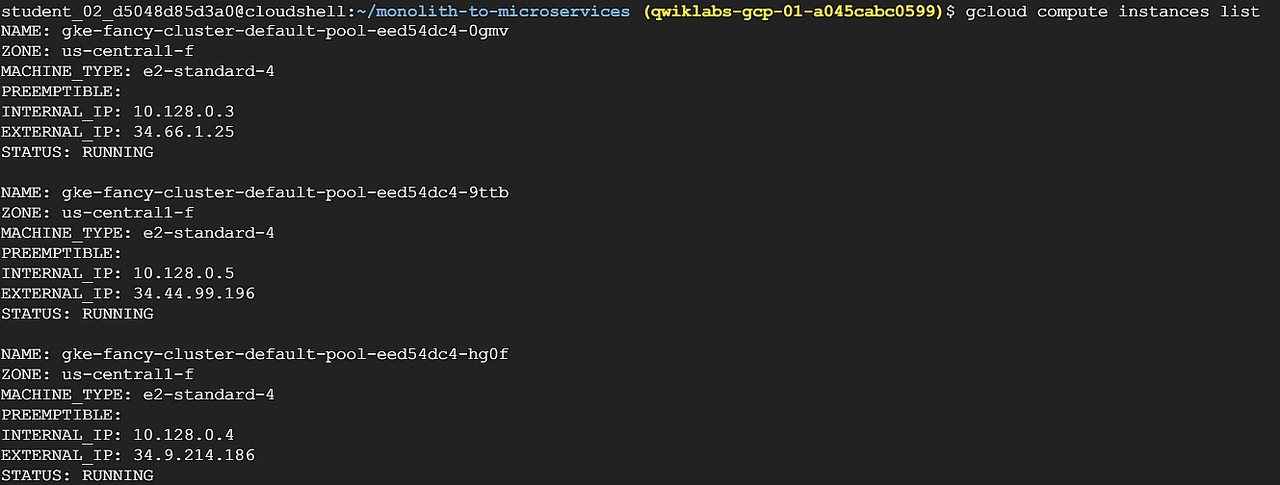
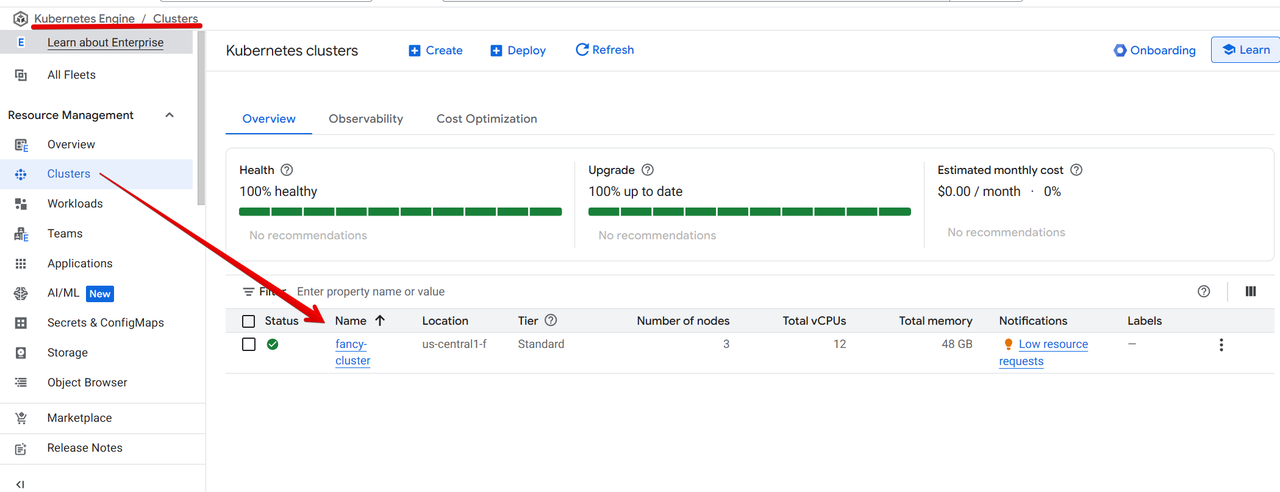
When you run the above command, the cluster name should be ‘fancy-cluster-685’. You should see an output similar to the image below.
🏷 Deploying the Monolith to Kubernetes
Let’s deploy our monolithic application to the cluster:
# Create Kubernetes deployment
kubectl create deployment fancy-monolith-203 \
  --image=gcr.io/${GOOGLE_CLOUD_PROJECT}/fancy-monolith-203:1.0.0

# Expose deployment as LoadBalancer service
kubectl expose deployment fancy-monolith-203 \
  --type=LoadBalancer \
  --port=80 \
  --target-port=8080

# Check service status to get external IP
kubectl get service fancy-monolith-203
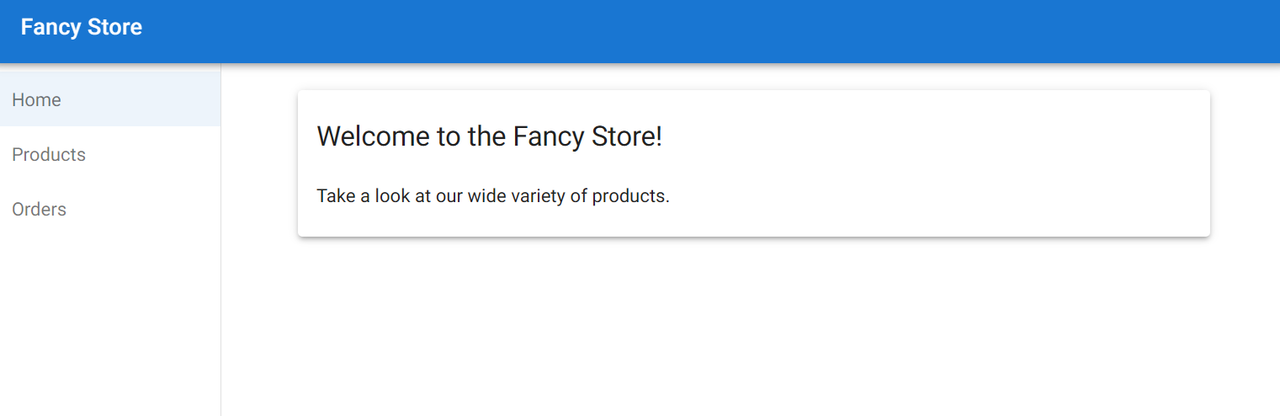
This creates a Kubernetes deployment using our monolith container image and exposes it as a LoadBalancer service. The service maps external port 80 to the internal application port 8080.
The LoadBalancer type in Kubernetes automatically creates an external load balancer with an externally accessible IP address that routes traffic to the service.

It may take 1–2 minutes for the external IP to be assigned. If you see <pending>, run the command again after a short wait.
🏷 Breaking Down into Microservices
Now that we’ve confirmed our monolith is running correctly, let’s begin breaking it down into microservices. We’ll create separate containers for the Orders, Products, and Frontend services.
✅ Orders Microservice
Let’s start by containerizing and deploying the Orders service:
# Navigate to Orders service directory
cd ~/monolith-to-microservices/microservices/src/orders

# Build and push container
gcloud builds submit \
  --tag gcr.io/${GOOGLE_CLOUD_PROJECT}/fancy-orders-447:1.0.0 .

# Deploy to Kubernetes
kubectl create deployment fancy-orders-447 \
  --image=gcr.io/${GOOGLE_CLOUD_PROJECT}/fancy-orders-447:1.0.0

# Expose service
kubectl expose deployment fancy-orders-447 \
  --type=LoadBalancer \
  --port=80 \
  --target-port=8081

# Get external IP
kubectl get service fancy-orders-447
Note that the Orders microservice internally runs on port 8081. This is because when splitting a monolith into microservices, each service typically runs on its own port.
Since the code is already separated into microservices, we can easily split out the service. Now we need to update the existing monolith to use the microservice.
Reconfiguring the Monolith to Use the Orders Microservice
Now we need to update the monolith to use our new Orders microservice:
# Edit configuration file
cd ~/monolith-to-microservices/react-app
nano .env.monolith

# Change:
# REACT_APP_ORDERS_URL=/service/orders
# To:
# REACT_APP_ORDERS_URL=http://<ORDERS_IP_ADDRESS>/api/orders

# Rebuild monolith frontend
npm run build:monolith

# Rebuild and redeploy container
cd ~/monolith-to-microservices/monolith
gcloud builds submit --tag gcr.io/${GOOGLE_CLOUD_PROJECT}/fancy-monolith-203:2.0.0 .
kubectl set image deployment/fancy-monolith-203 fancy-monolith-203=gcr.io/${GOOGLE_CLOUD_PROJECT}/fancy-monolith-203:2.0.0
This is a crucial step when migrating from monolith to microservices. Instead of making internal function calls, the application now makes HTTP requests to a separate service. This is the most important point to remember.
✅Products Microservice
Now let’s deploy the Products service:
# Navigate to Products service directory
cd ~/monolith-to-microservices/microservices/src/products

# Build and push container
gcloud builds submit \
  --tag gcr.io/${GOOGLE_CLOUD_PROJECT}/fancy-products-894:1.0.0 .

# Deploy to Kubernetes
kubectl create deployment fancy-products-894 \
  --image=gcr.io/${GOOGLE_CLOUD_PROJECT}/fancy-products-894:1.0.0

# Expose service
kubectl expose deployment fancy-products-894 \
  --type=LoadBalancer \
  --port=80 \
  --target-port=8082

# Get external IP
kubectl get service fancy-products-894
The Products microservice runs internally on port 8082, following the pattern of assigning individual ports for microservices.
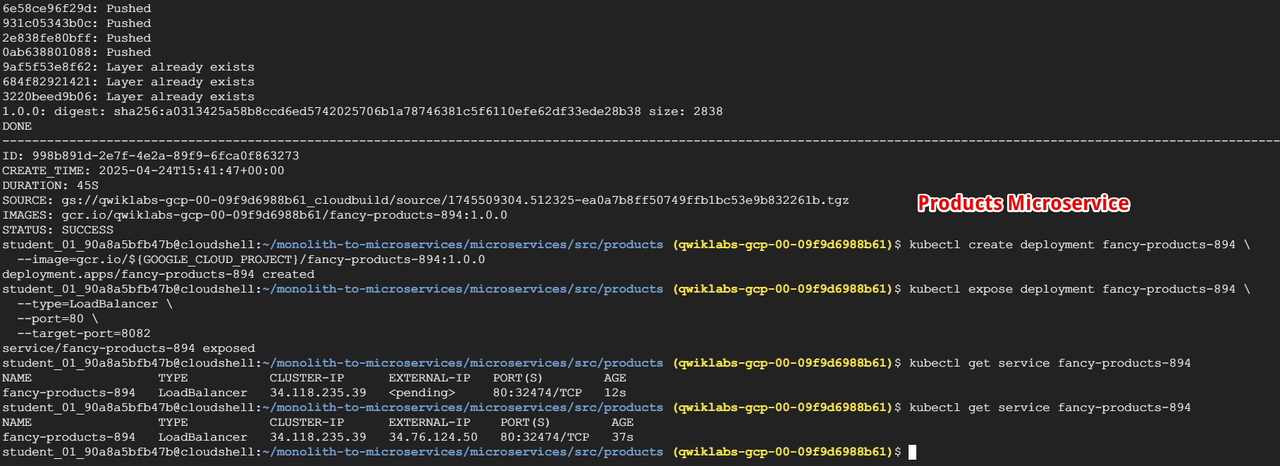
Reconfiguring the Monolith Again
Now that we’ve separated Products as well, we need to update the monolith again:
# Edit configuration file
cd ~/monolith-to-microservices/react-app
nano .env.monolith

# Modify to include both microservices:
# REACT_APP_ORDERS_URL=http://<ORDERS_IP_ADDRESS>/api/orders
# REACT_APP_PRODUCTS_URL=http://<PRODUCTS_IP_ADDRESS>/api/products

# Rebuild monolith frontend
npm run build:monolith

# Rebuild and redeploy container
cd ~/monolith-to-microservices/monolith
gcloud builds submit --tag gcr.io/${GOOGLE_CLOUD_PROJECT}/fancy-monolith-203:3.0.0 .
kubectl set image deployment/fancy-monolith-203 fancy-monolith-203=gcr.io/${GOOGLE_CLOUD_PROJECT}/fancy-monolith-203:3.0.0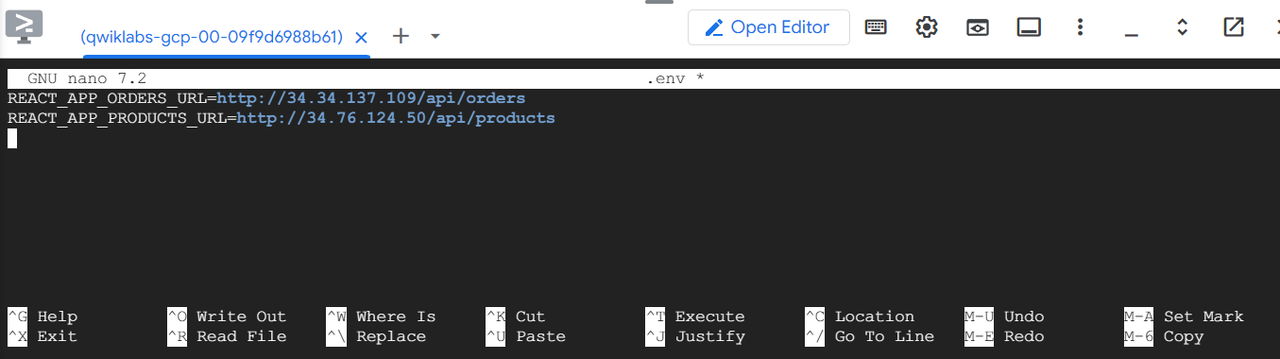
We have now separated Orders and Products into microservices. All that’s left is to separate the Frontend.
✅ Frontend Microservice Deployment
Finally, let’s create the Frontend microservice to complete our migration:
# Prepare frontend configuration
cd ~/monolith-to-microservices/react-app
cp .env.monolith .env
npm run build

# Navigate to Frontend service directory
cd ~/monolith-to-microservices/microservices/src/frontend

# Build and push container
gcloud builds submit \
  --tag gcr.io/${GOOGLE_CLOUD_PROJECT}/fancy-frontend-962:1.0.0 .

# Deploy to Kubernetes
kubectl create deployment fancy-frontend-962 \
  --image=gcr.io/${GOOGLE_CLOUD_PROJECT}/fancy-frontend-962:1.0.0

# Expose service
kubectl expose deployment fancy-frontend-962 \
  --type=LoadBalancer \
  --port=80 \
  --target-port=8080

# Get external IP
kubectl get service fancy-frontend-962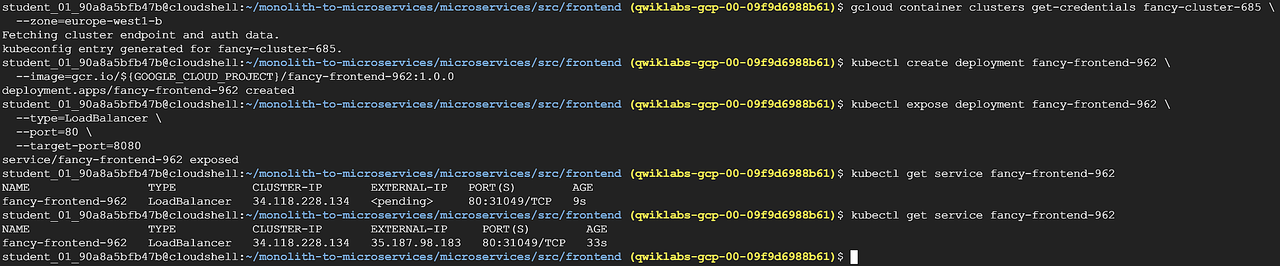
We’ve now deployed a dedicated Frontend microservice that communicates directly with the Orders and Products microservices.
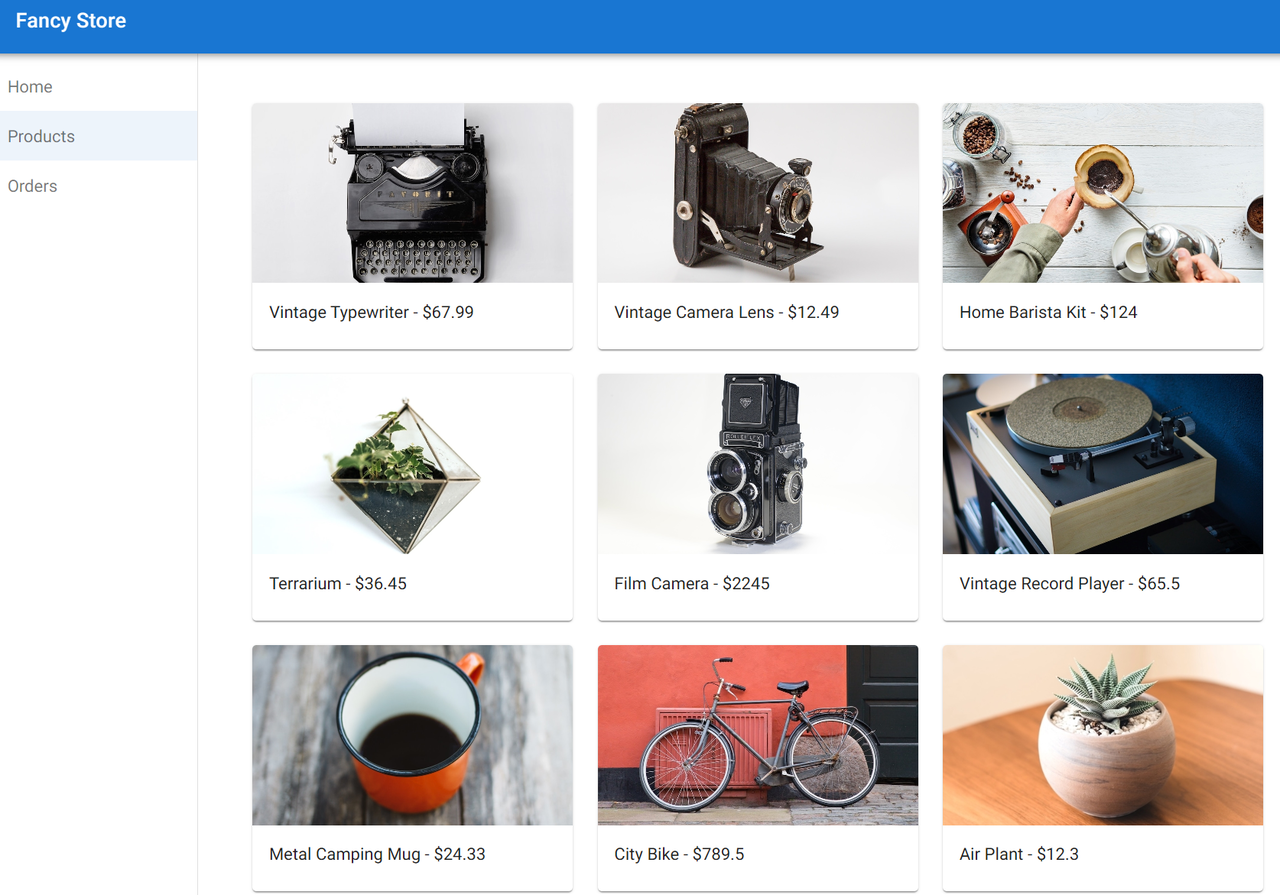
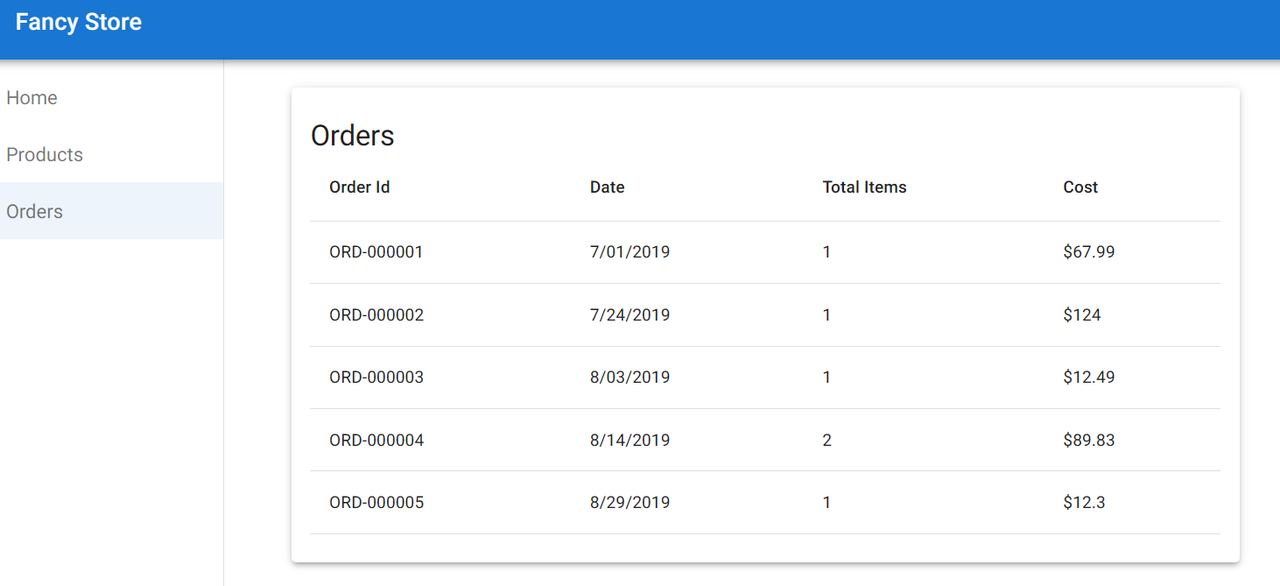
In the challenge lab(study jam), you’ll see the results in JSON format.
✅Delete the Original Monolith
Now that all services have been separated into microservices, we can remove the original monolith:
kubectl delete deployment fancy-monolith-203
kubectl delete service fancy-monolith-203
In a real-world scenario, this would require careful planning, including DNS changes to redirect traffic from the monolith to the new frontend.
To verify that everything has been set up correctly, run:
kubectl get services
You should see a similar screen. (Note that this image was taken from a different test, so the IP address shown may not match the one you receive.)
🏷 Conclusion and Considerations
We’ve successfully migrated a monolithic project to microservices.
While this demonstration is simplified, applying this to real services can be much more complex.
Here are some important considerations:
- Managing Service Communication: Microservices communicate over networks, introducing latency and increased potential for failures. In production environments, consider implementing a service mesh like Istio to efficiently manage traffic and enhance security.
- Ensuring Data Consistency: When each microservice uses an independent database, carefully plan data partitioning strategies and consistency mechanisms. Data synchronization issues may arise between services.
- Establishing Observability: With distributed services, problem tracking and debugging become more complex. Implement integrated logging, monitoring, and distributed tracing systems to maintain visibility across the entire system.
- Redesigning Security Framework: Authentication and authorization between services become more complex in a microservices environment. Implement appropriate authentication mechanisms for secure service-to-service communication.
By migrating our monolithic application to a microservices architecture using Google Kubernetes Engine (GKE), we’ve gained several advantages:
- Scalability: Each service can scale independently based on individual demand.
- Resilience: Problems in one service don’t affect the functionality of other services, improving overall system stability.
- Development Agility: Development teams can develop and deploy their services independently of others, accelerating development speed.
- Technical Flexibility: Each service can use the technology stack most appropriate for its requirements.
If you want to try this yourself on Google Cloud, you can practice at https://www.cloudskillsboost.google/course_templates/638.
This requires tokens, which are also available through Google’s annual Study Jam events.
This turned out longer than I expected! If there’s good feedback, I’ll write about other Google Cloud services as well.
Have a great day!
This essay was originally published on Medium and migrated to KanApp Blog.

Comments
Join the conversation
Sign in to leave a comment.
Comment login is being configured.
No comments yet.