

MCP Part 2: Working with Claude
Elevate your AI experience with MCP and Claude. Unleash the power to control local files, breaking barriers between AI and your desktop.
Following our previous article, we’ll explore how to use MCP (Model Context Protocol) with Claude. If you haven’t read the previous post, I recommend checking out “MCP Part 1 : MCP Essentials (Getting Started Guide)” first.
Please note that I’m writing this using a Claude Pro plan, so there may be feature limitations on the free plan. Additionally, all installation and execution results are based on Windows.

🏷 Claude Desktop Setup
After installing Claude Desktop, you need to access the developer settings.
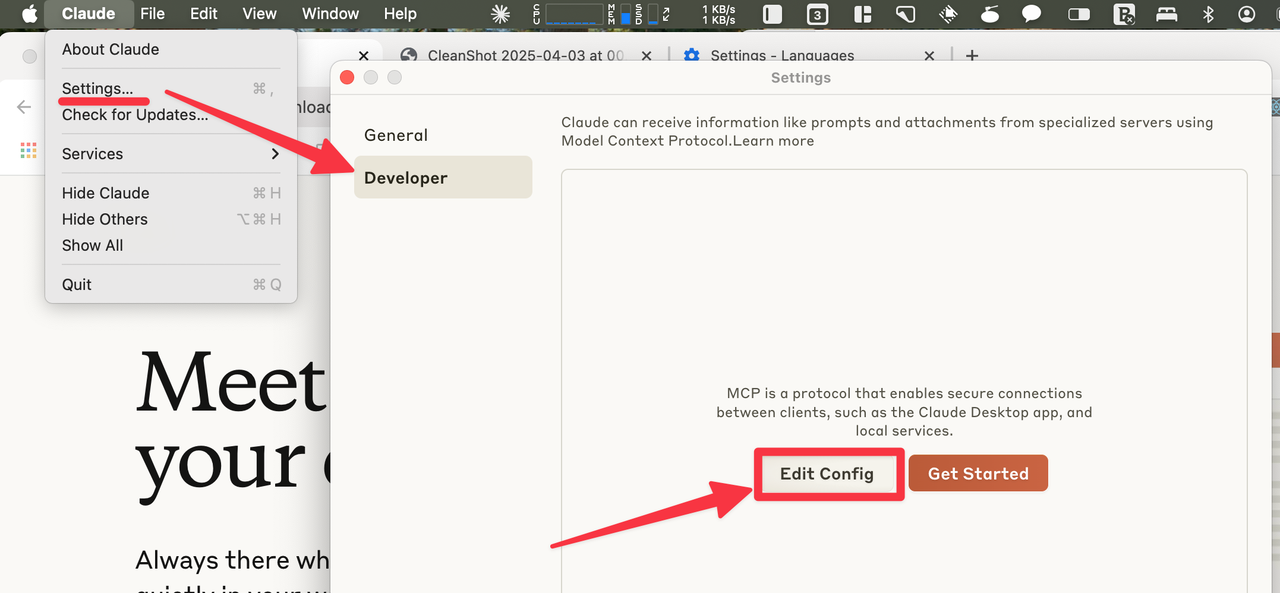
Navigate to the settings from the top menu bar, not from the bottom settings option. Once in settings, move to the Developer tab and click on “Edit Config”.
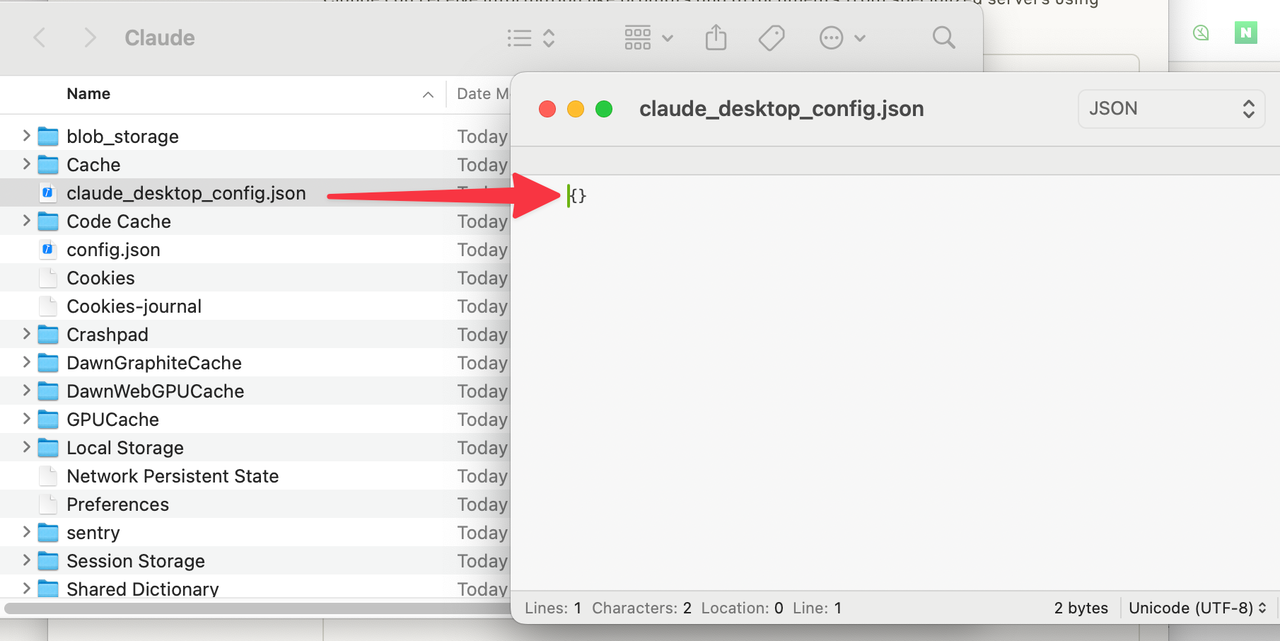
This will give you access to the claude_desktop_config.json file, which you should open with your preferred text editor. For reference, the actual file path is C:\Users\UserName\AppData\Roaming\Claude. (Although the screenshots were taken on macOS, the main implementation was done on Windows.)
First, we’ll add a Filesystem server that allows us to control local files and directories. Don’t worry about the complexity — it’s simply a matter of adding a few lines of code to enable this functionality. To implement this, open the claude_desktop_config.json file in your text editor and add the following content, then save the file.
{
  "mcpServers": {
    "filesystem": {
      "command": "npx",
      "args": ["-y", "@modelcontextprotocol/server-filesystem", "D:\\KAN_WebWork\\MCP"]
    }
  }
}
In Windows, you need to use double backslashes (\) in directory paths.
The path in Windows is “D:\KAN_WebWork\MCP”, while the path in macOS screenshots is “/Users/kan/MCP”. Regardless of whether you’re using Windows or Mac, you can consider the path as starting from the “MCP” directory.
🏷 JSON Analysis and Execution Process
🔸 Let me briefly explain this JSON configuration:
mcpServers: The top-level object containing MCP server configurations; this must be unique within the file.
filesystem: The name or identifier of the MCP server; you can add multiple servers in this format.
command: The main executable file for execution. In this case, we’re using Node’s npx command.
args: An array of arguments to pass when executing the command.
- -y: A flag that enables automatic installation of packages.
- @modelcontextprotocol/server-filesystem: The npm package name to execute.
- D:\KAN_WebWork\MCP: The local path the server will access; you can modify this to your desired path.
🔸 Now, let’s examine how this server (filesystem) operates:
Initialization Phase:
- The JSON configuration file is loaded and parsed
- Server settings within the mcpServers object (in this case, filesystem) are verified
Server Launch:
- The npx command executes, downloading and running the @modelcontextprotocol/server-filesystem package
- A filesystem server starts with access permissions to the specified path (D:\KAN_WebWork\MCP)
Client-Server Connection:
- The host application (client) connects to the launched MCP server
- Required authentication processes are completed
File Operation Handling:
- The client sends file read/write/modify requests to the server
- The server receives these requests and performs the operations in the specified path (D:\KAN_WebWork\MCP)
- Operation results are returned to the client
Data Transfer and Processing:
- Data is securely exchanged between the server and client
- Data transformation or processing occurs as needed
Error Handling:
- Handles error scenarios such as missing files or insufficient permissions
- Returns appropriate error messages to the client
Simply put, we install the server-filesystem package locally through npx, and this package enables control over the subdirectories specified in the arguments. During this process, a connection is established with Claude, allowing for bidirectional information exchange.
🏷 Claude Desktop Setup
Now, let’s test our configuration. Close Claude Desktop and restart it.
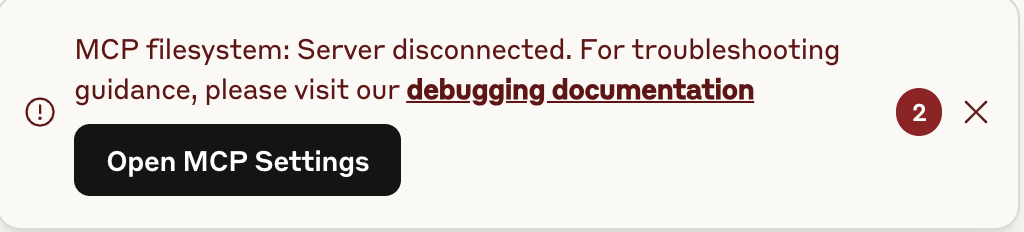
On Windows, if you close the application by clicking the X button on the right and MCP doesn’t load properly, try closing it using the exit option from the top-left menu instead.
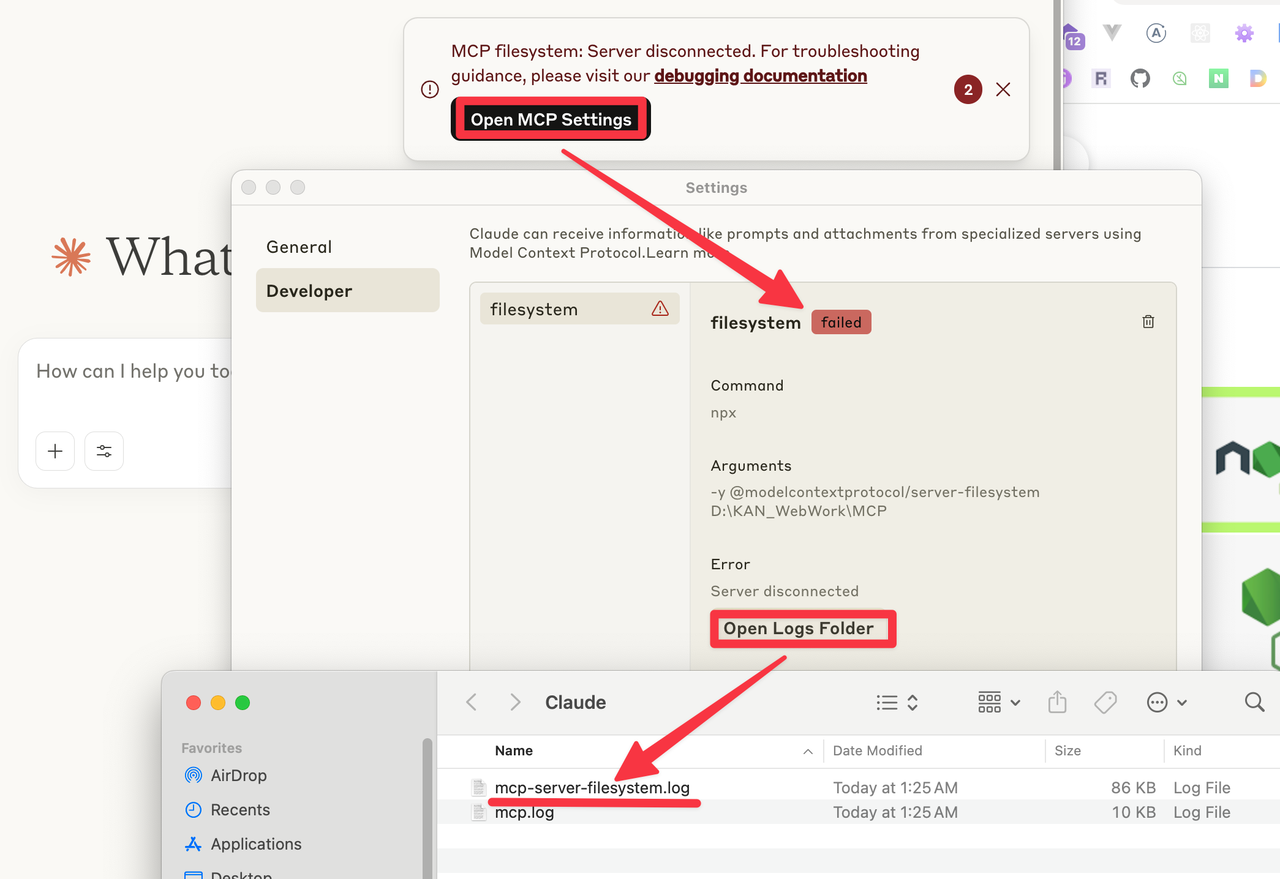
Sometimes errors occur when loading MCP. In this case, try closing and restarting the application.
If the issue persists, you can examine the relevant logs through the “Open logs folder” option. Log files are stored in “C:\Users\UserName\AppData\Roaming\Claude\logs” (in Windows) for your reference.
The error above occurred due to a failed connection to the server.
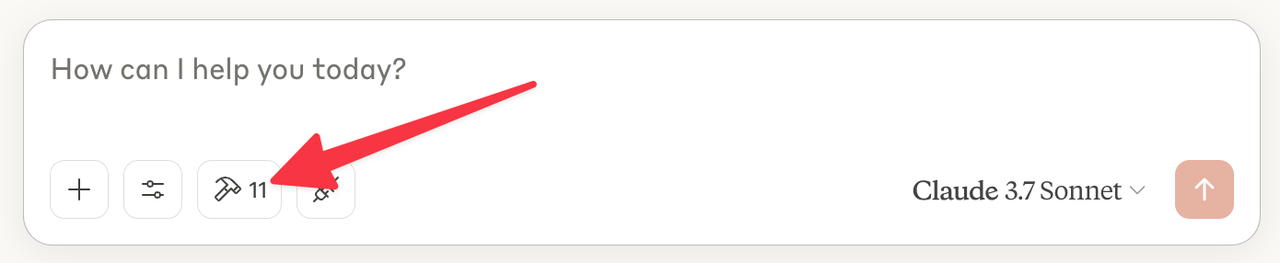
When loaded correctly, you’ll see a hammer icon with a number in the bottom right corner. This number represents the count of commands (referred to as “tools” in MCP) that you can use through MCP. (If only the filesystem is configured, you’ll see the number 11.)
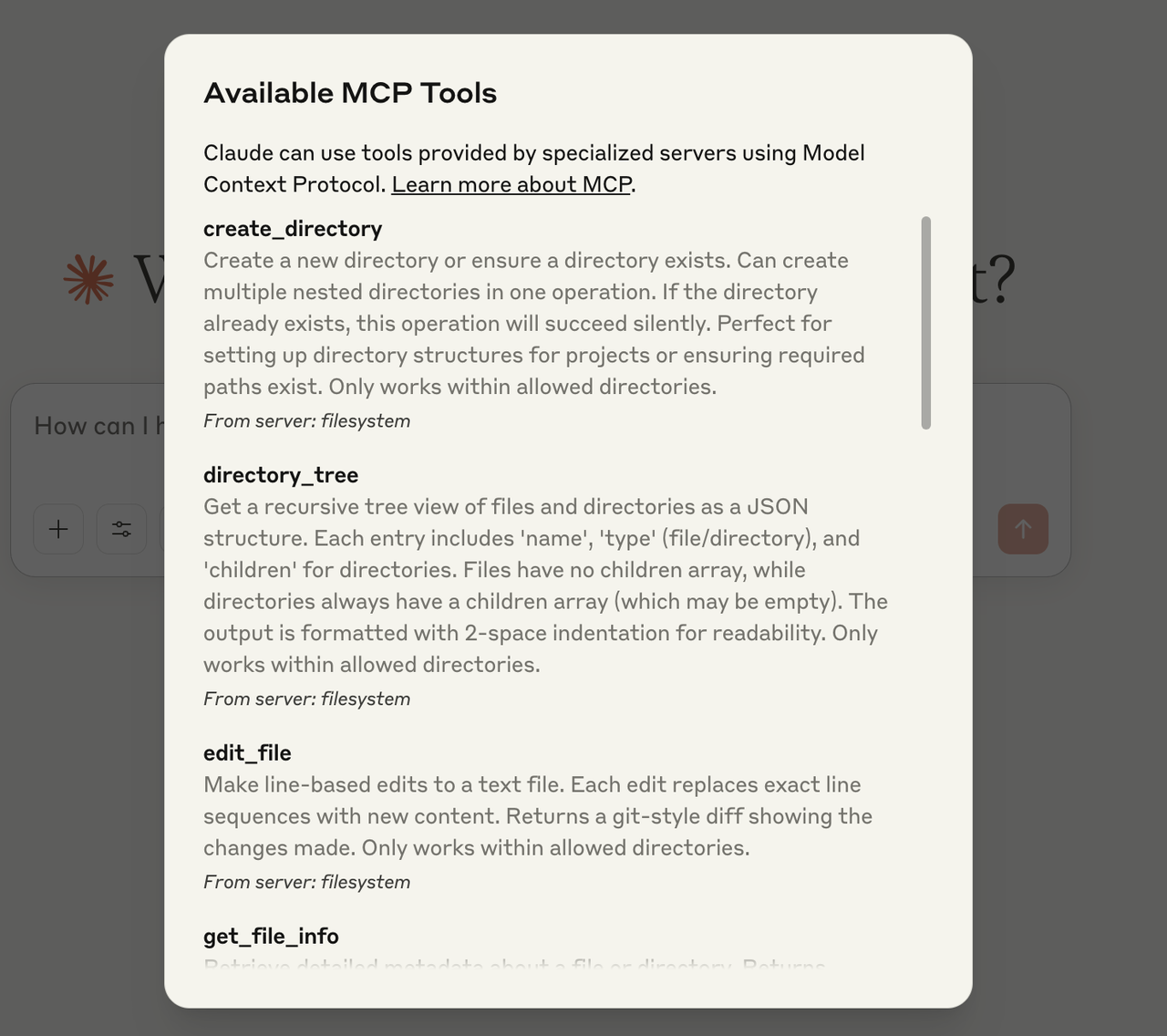
When you click on the hammer icon, you can see the available commands (tools) along with brief descriptions. For more detailed information, please refer to the readme
@modelcontextprotocol/server-filesystem
MCP server for filesystem access. Latest version: 2025.3.28, last published: 6 days ago. Start using…www.npmjs.com
🏷 Running the MCP Server
All preparations are now complete. Let’s test the MCP functionality by performing some file operations.
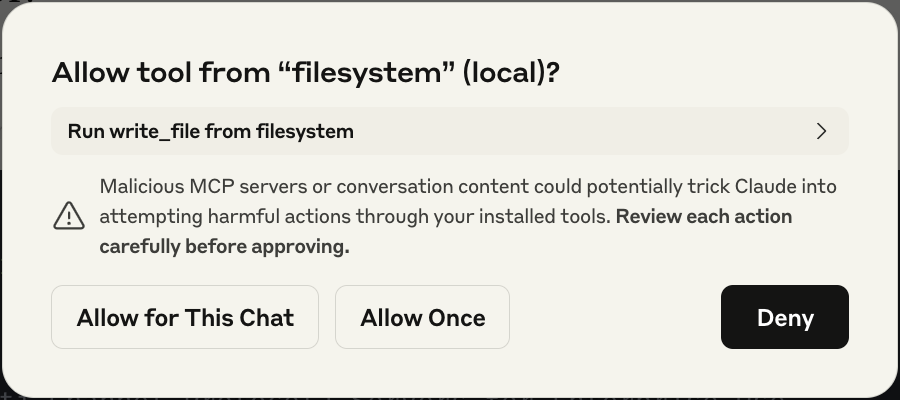
First, let’s create a new directory in the MCP directory:
- Simply ask Claude to create a directory within your MCP directory.
- Claude will prompt you to execute
create_directoryfrom the filesystem. - After you grant permission, it will continue requesting additional permissions as needed.
- Once you approve them, the operation will be completed.
The directory should be successfully created.
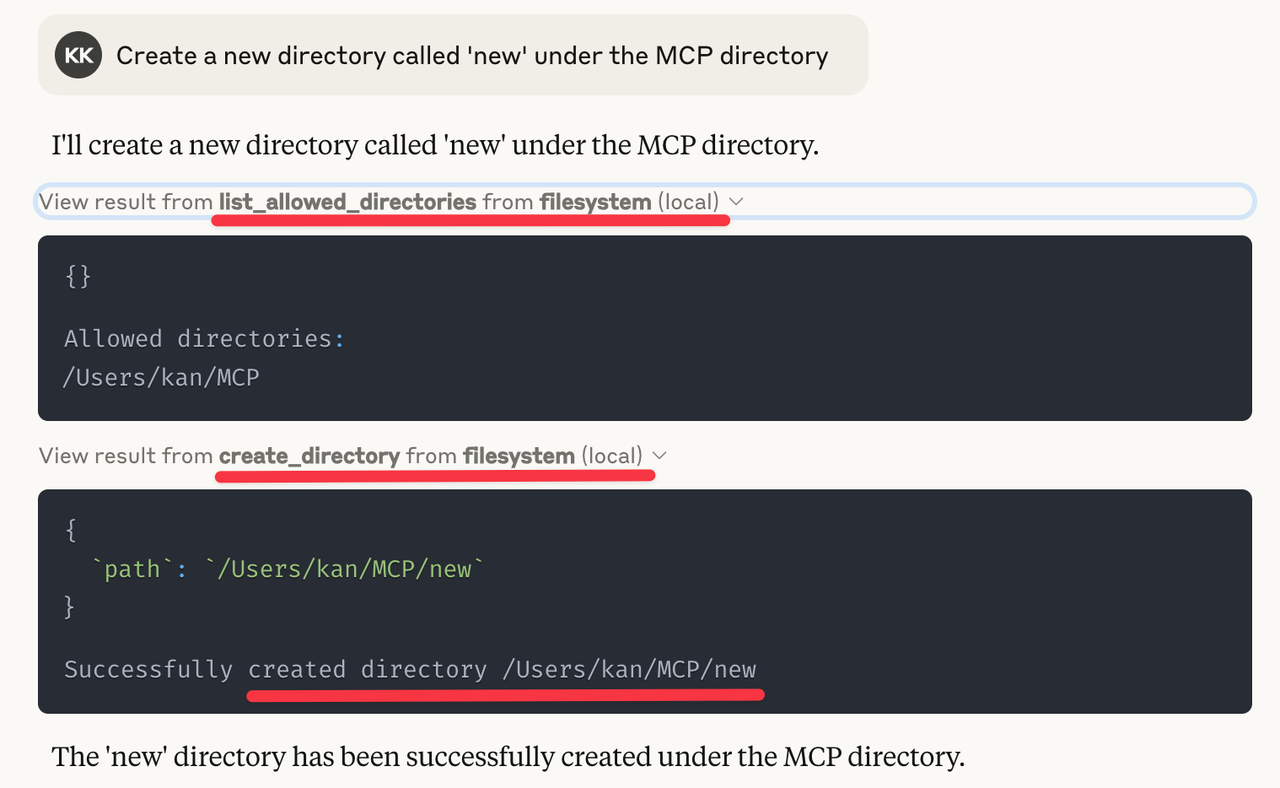
Note: Even without using special keywords, Claude should recognize references like “MCP directory” as referring to a directory within MCP’s filesystem. If Claude fails to recognize this and operates as a standard AI without using MCP functionality, try specifically mentioning “using filesystem” or similar MCP server identifiers to trigger the proper functionality.
Let’s try one more example. This time we’ll:
- Get the recommended list from the MCP server
- Display it
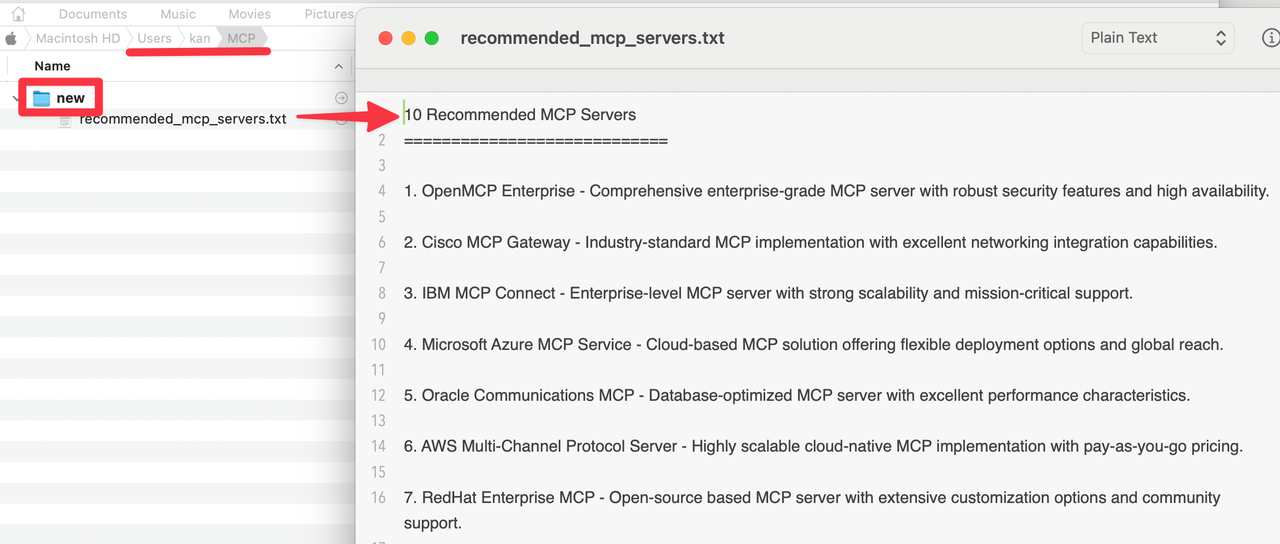
- Save it as a text file in the MCP/new directory
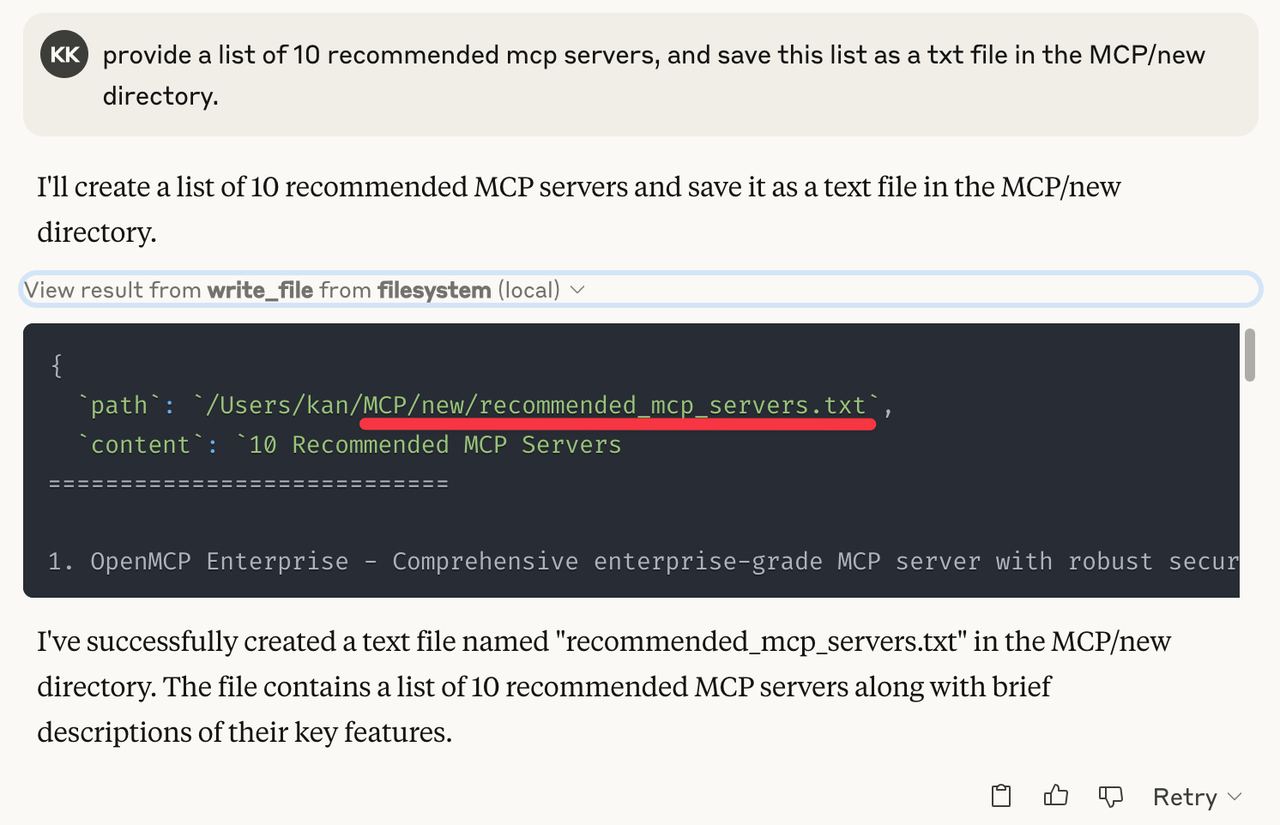
Claude should guide you through processes such as list_allowed_directories, create_directory, and write_file to successfully save the TXT file.
🏷 Conclusion
In this post, we’ve explored the basic setup and usage of MCP. In the next series, I’ll cover implementing real-time search functionality using the Brave Search API.
I’ll continue to share new insights and tips throughout the development process. If you have any experiences with MCP or questions, please leave them in the comments. Let’s continue this journey of learning and growing together!
See you in the next post. 👨💻
This essay was originally published on Medium and migrated to KanApp Blog.



Comments
Join the conversation
Sign in to leave a comment.
Comment login is being configured.
No comments yet.