

Using Gmail SMTP
Navigate Gmail’s updated SMTP authentication with App Passwords — a streamlined approach for developers. Learn how to test, implement…
I noticed that Gmail SMTP settings have changed significantly since the last time I used them, so I decided to document the current process.
🏷 Google Account Configuration
In the past, these settings were accessible through Gmail’s configuration page, but now they’re managed through your Google Account settings (https://myaccount.google.com/).
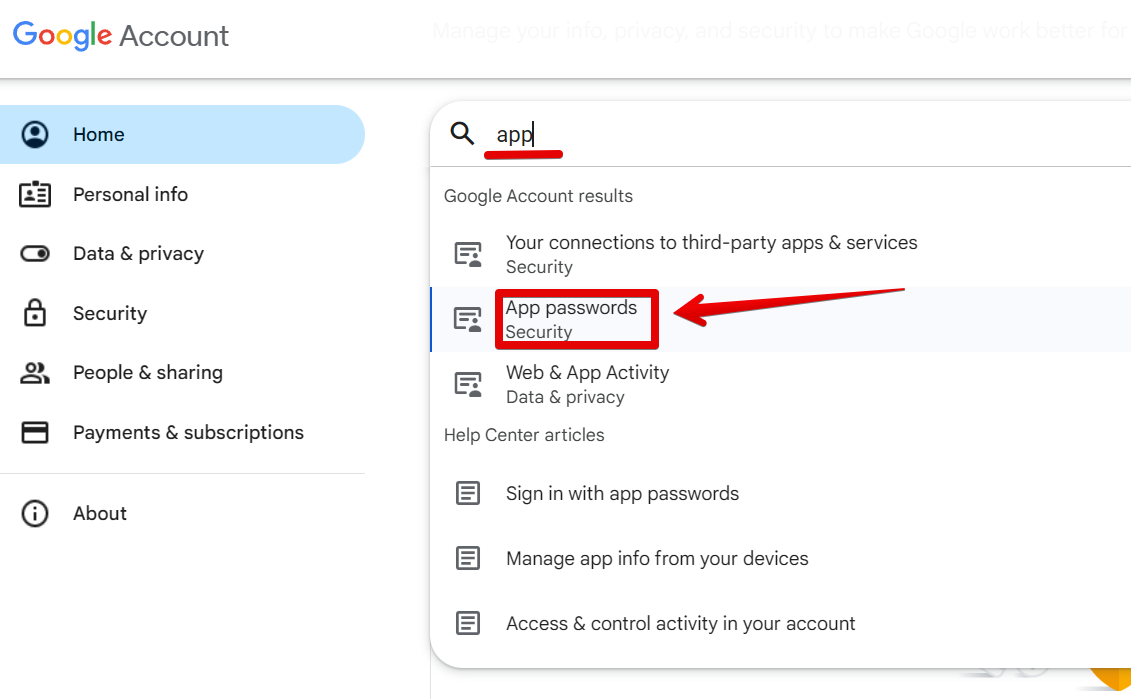
You need to set up an “App Passwords” to use for authentication. You can find this by searching for “app” or “password” in the settings search bar.
If you don’t see “App Passwords” in the search results, it’s because you haven’t enabled two-factor authentication (2FA) for your account. You’ll need to set up 2FA first before this option becomes available.
App Passwords are 16-character passwords temporarily issued to allow less secure apps or devices to log into your Google account. They can be used for SMTP, IMAP/POP3, FTP/SFTP, or third-party services that require Google account authentication.
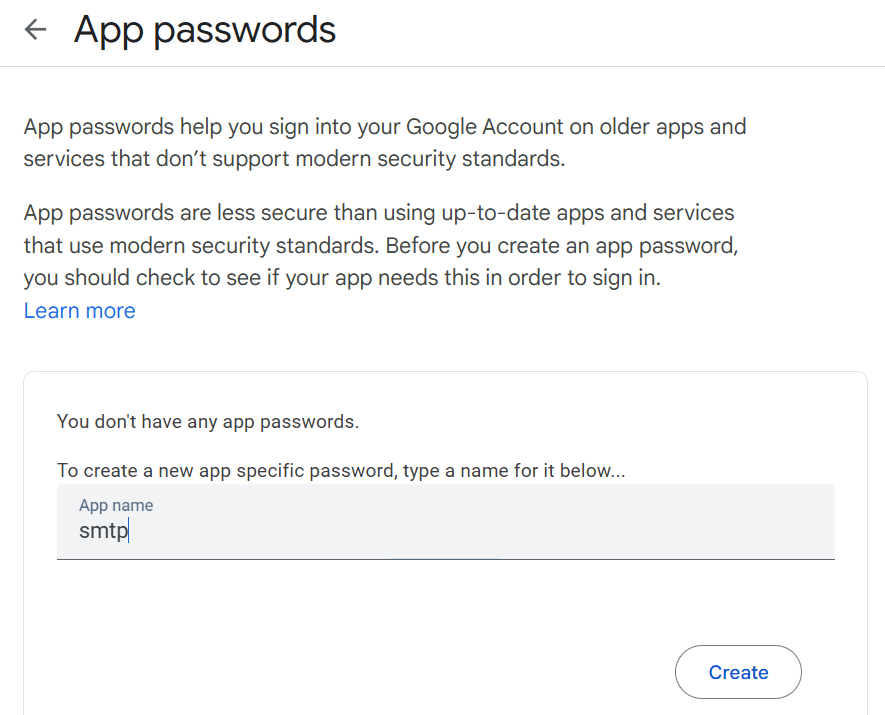
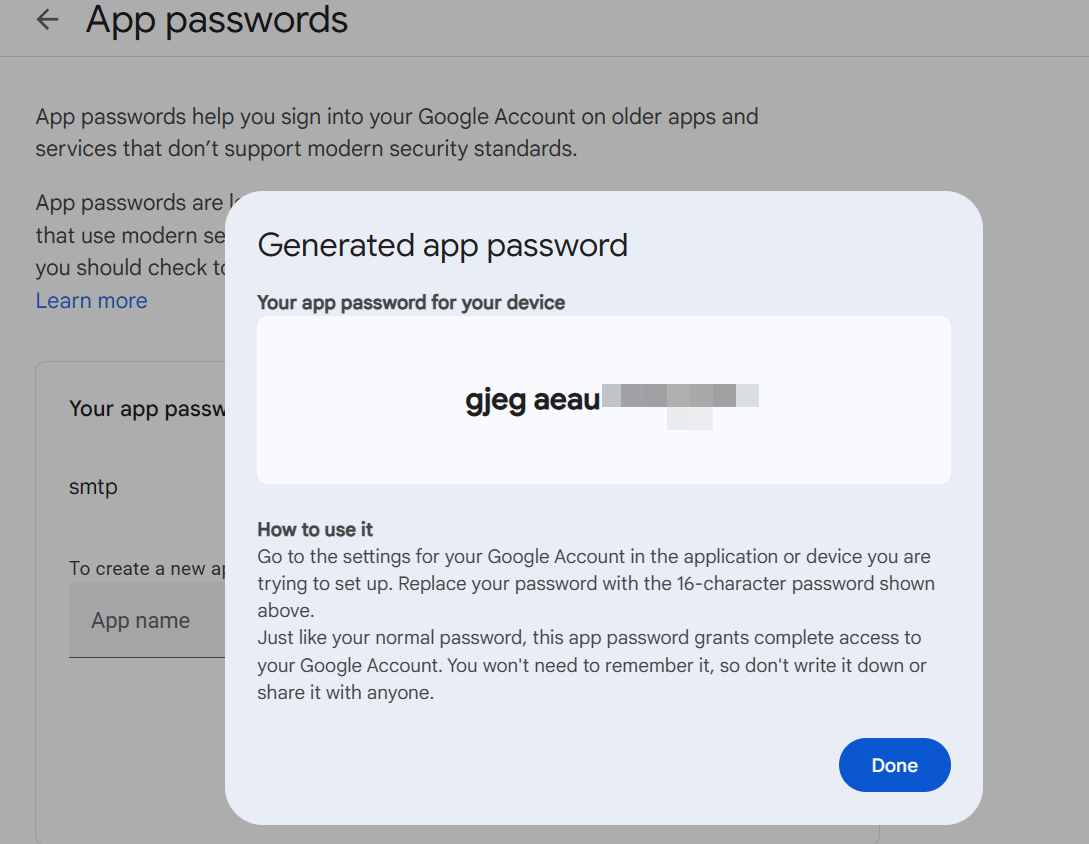
The password is 16 characters long, and when using it, you need to remove any spaces. Once you’ve generated the password, the Google configuration is complete and ready to use.
🏷 Testing SMTP
Now let’s test our setup.
While you could directly implement this in your server or code, I recommend verifying that everything is working correctly through an external service first. This helps distinguish between configuration issues and other problems.
The simplest way to test is through GMass (https://www.gmass.co/smtp-test), which doesn’t require registration or other conditions to use.
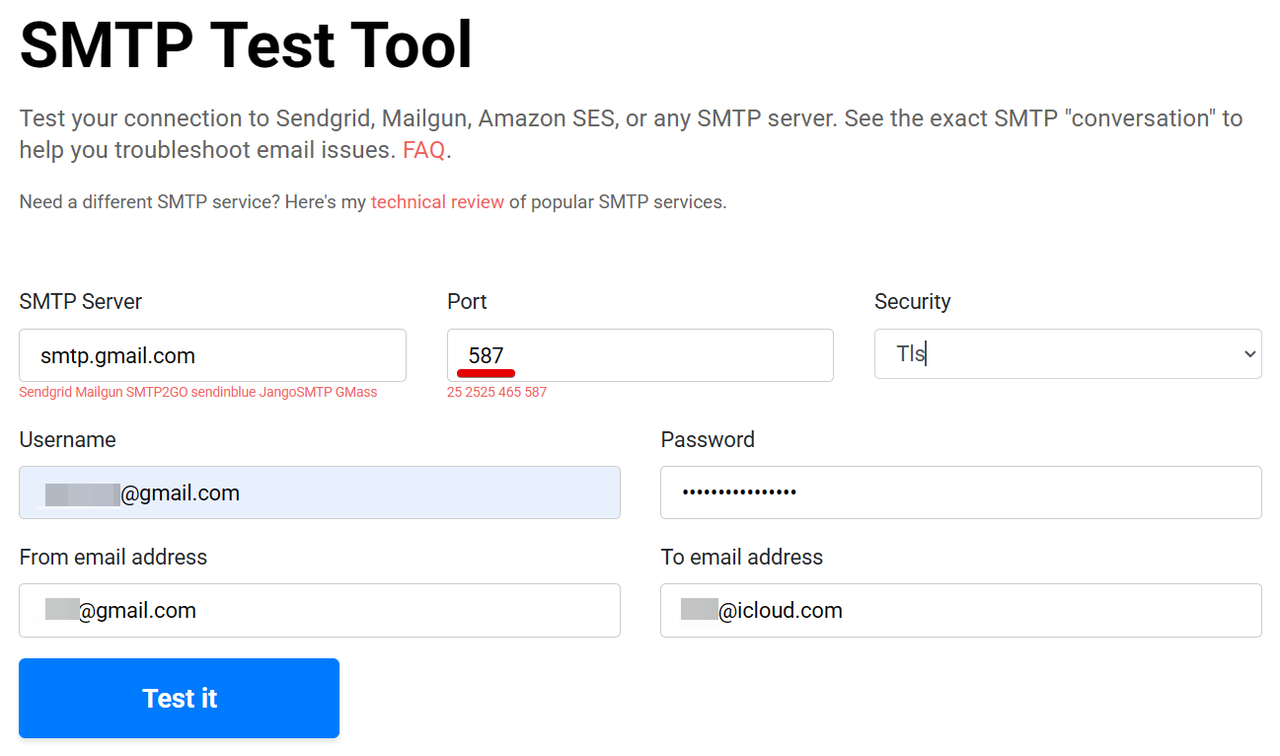
When using Gmail, set the Port to 587 and Security to TLS or Auto.
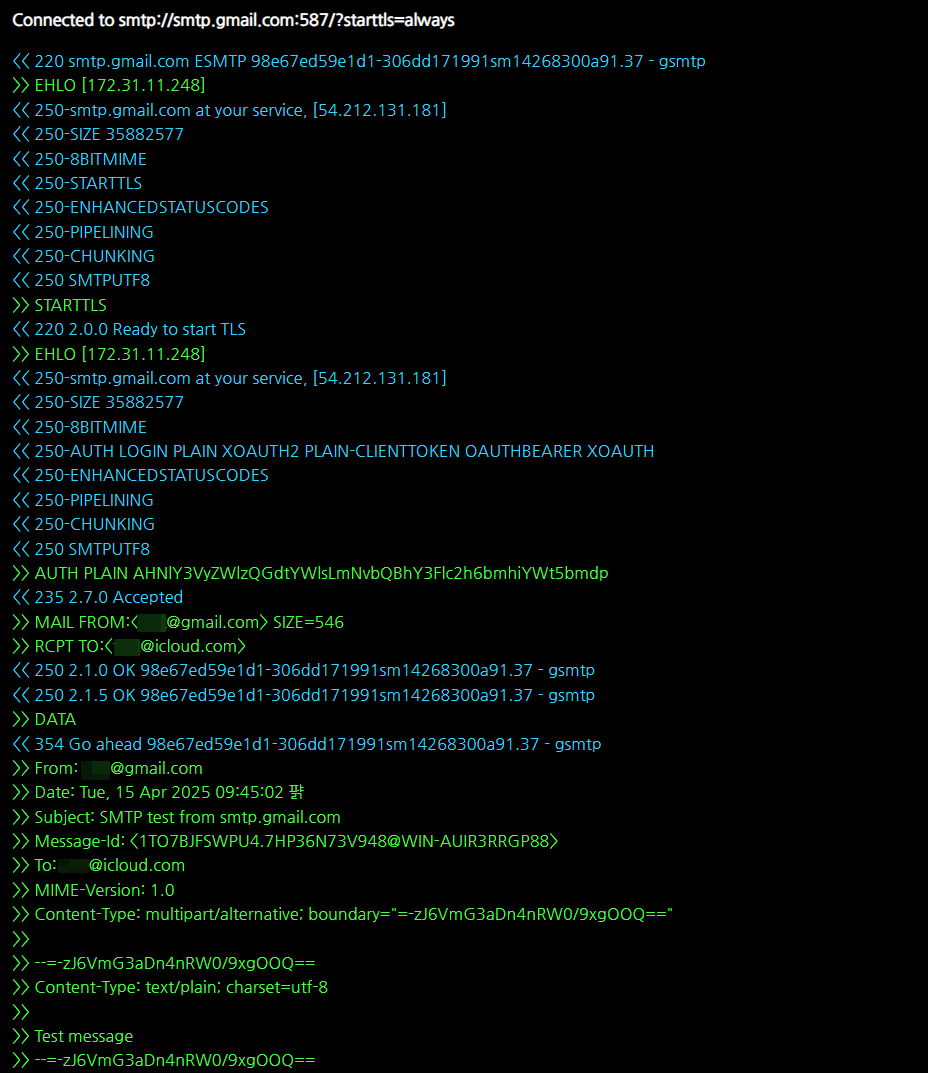
This will immediately send a test email to verify that your SMTP configuration is working properly. If external access is available, you can also check and send test emails to other servers.
🏷 Final Implementation
Once testing is complete, you can implement the verified settings in your code.
It’s worth noting that when using SMTP, you don’t need a mail server installed on your server. There’s no need to install sendmail or postfix. If you’re seeing mail delivery issues being recorded in /var/log/maillog, it means your local mail server is active but your SMTP configuration isn’t working correctly.
In other words, SMTP doesn’t use your server’s mail system, which can sometimes cause confusion.
I’ve been busy with the Google Study Jam lately, but I’ll try to share more content soon.
Happy coding! ^^;
This essay was originally published on Medium and migrated to KanApp Blog.



Comments
Join the conversation
Sign in to leave a comment.
Comment login is being configured.
No comments yet.