

클라우드와 인프라 전환 필드 노트
GKE, Kubernetes, 서버 세팅, SSL, SMTP, React Native 디버깅, 클라우드 관제까지 운영자가 다시 읽기 좋은 국문 인프라 매거진입니다.
이 매거진은 국문 에세이 중 클라우드, 서버, 인증서, 배포, 장애 해결, 모바일 빌드 디버깅 글을 묶었습니다. 실전에서 막히는 지점을 기록해 둔 글들이라, 튜토리얼보다 체크리스트처럼 읽는 편이 좋습니다.
서버 기본기에서 GKE 전환, 모바일 빌드 오류, 클라우드 관제 MVP까지 이어지는 운영자의 현장 노트입니다. 완성된 아키텍처보다 막힌 지점과 회복 방법을 중심으로 읽을 수 있게 구성했습니다.
아래 목차에서 관심 있는 글을 선택하면 이 매거진 안에서 바로 본문을 이어서 읽을 수 있습니다.
이 글이 도움 됐다면
추천하거나 필요한 곳에 공유해 주세요.
목차
8개 스토리(총 57분)- 01Ubuntu 에 Node + PostgreSQL 설치 및 세팅하기
- 02SSL 설정 (.pem과 .ca의 차이)
- 03Gmail SMTP 설정 및 테스트하기
- 04🧱 GKE로 Monolith에서 Microservices 이전 - 개념잡기
- 05🧱 GKE로 Monolith에서 Microservices 이전 - 실전편
- 06react-native-gifted-charts 에서 차트 라인 끊기
- 07react-native-libsodium에서 escape와 .so 관련 오류 해결하기
- 087일동안 1억 토큰으로 바이브 코딩해 만든 Cloud 관제 시스템(Raindrop+Vultr)
선택한 글
Ubuntu 에 Node + PostgreSQL 설치 및 세팅하기
개인적인 기술했던 내용이라서 경어체는 사용하지 않았으니 양해해 주세요.
centOS 7.x에서 설치했다가, glibc 버전 차이로 인해서 최신버전인 우분투 22.04로 설치했다.
rocky 최신 버전에는 glibc 버전 차이가 없을거 같으나, 차후 확인해 보자.
아파치, Node, 사용자 추가
apt 업데이트 및 apache2 설치, user 추가..
git과 curl도 같이 설치해 주자.. 여기서는 sudo를 사용하지 않고, root로 설치하는 과정이다.
# apt update
# apt install apache2
# adduser xxxx
# apt install git curl
✅ NVM, Node 설치
https://github.com/nvm-sh/nvm 를 보면 리눅스에서 설치하는 과정이 나와 있다.
curl -o- https://raw.githubusercontent.com/nvm-sh/nvm/v0.39.7/install.sh | bash이렇게 설치하면 된다. 권한 문제들으로 root나 sudo로 설치해야 한다.
# curl -o- https://raw.githubusercontent.com/nvm-sh/nvm/v0.39.7/install.sh | bash
  % Total    % Received % Xferd  Average Speed   Time    Time     Time  Current
                                 Dload  Upload   Total   Spent    Left  Speed
100 16555  100 16555    0     0  25878      0 --:--:-- --:--:-- --:--:-- 25907
=> Downloading nvm from git to '/home/nest/.nvm'
=> Cloning into '/home/nest/.nvm'...
remote: Enumerating objects: 365, done.
remote: Counting objects: 100% (365/365), done.
remote: Compressing objects: 100% (313/313), done.
remote: Total 365 (delta 43), reused 165 (delta 26), pack-reused 0
Receiving objects: 100% (365/365), 365.08 KiB | 0 bytes/s, done.
Resolving deltas: 100% (43/43), done.
* (detached from FETCH_HEAD)
  master
=> Compressing and cleaning up git repository

=> Appending nvm source string to /home/nest/.bashrc
=> Appending bash_completion source string to /home/nest/.bashrc
=> Close and reopen your terminal to start using nvm or run the following to use it now:

export NVM_DIR="$HOME/.nvm"
[ -s "$NVM_DIR/nvm.sh" ] && \. "$NVM_DIR/nvm.sh"  # This loads nvm
[ -s "$NVM_DIR/bash_completion" ] && \. "$NVM_DIR/bash_completion"  # This loads nvm bash_completion
# vi .bashrc
......
export NVM_DIR="$HOME/.nvm"
[ -s "$NVM_DIR/nvm.sh" ] && \. "$NVM_DIR/nvm.sh" # This loads nvm
[ -s "$NVM_DIR/bash_completion" ] && \. "$NVM_DIR/bash_completion" # This loads nvm bash_completion.bashrc 에 아래 코드가 자동으로 추가된다. 재접속해야 nvm이 실행이 가능하다.
재접속후 아래처럼 설치 및 세팅하면 된다.
# nvm -v
0.39.7
# nvm ls-remote # 설치 목록 리스트 LTS 버전으로 설치하자.
.....
        v20.9.0   (LTS: Iron)
       v20.10.0   (LTS: Iron)
       v20.11.0   (LTS: Iron)
       v20.11.1   (LTS: Iron)
       v20.12.0   (LTS: Iron)
       v20.12.1   (LTS: Iron)
       v20.12.2   (LTS: Iron)
       v20.13.0   (LTS: Iron)
       v20.13.1   (Latest LTS: Iron)

# nvm install v20.13.0
Downloading and installing node v20.13.0...
Downloading https://nodejs.org/dist/v20.13.0/node-v20.13.0-linux-x64.tar.xz...
####################### 100.0%
Computing checksum with sha256sum
Checksums matched!
Now using node v20.13.0
Creating default alias: default -> v20.13.0 *

# nvm ls
       v20.13.0 *
default -> v20.13.0 *
iojs -> N/A (default)
node -> stable (-> v20.13.0 *) (default)
stable -> 20.13 (-> v20.13.0 *) (default)
unstable -> N/A (default)

# node -v
v20.13.0
PostgreSQL
✅ 설치
apt install postgresql -y 로 기본 패키지로 설치하는 방법도 있으나, 여기서는 공식 PostgreSQL 저장소를 사용해 최신 버전을 설치하는 과정이다.
# sh -c 'echo "deb http://apt.postgresql.org/pub/repos/apt/ $(lsb_release -cs)-pgdg main" >> /etc/apt/sources.list.d/pgdg.list'우선 저장소를 추가를 한다.
# wget --quiet -O - https://www.postgresql.org/media/keys/ACCC4CF8.asc | sudo apt-key add -
Warning: apt-key is deprecated. Manage keyring files in trusted.gpg.d instead (see apt-key(8)).
OK

# apt update
그 다음 PostgreSQL 저장소 키를 가져오고, 그 다음 시스템 패키지를 업데이트 한다.
# apt install postgresql -y
# psql --version
psql (PostgreSQL) 16.3 (Ubuntu 16.3-1.pgdg22.04+1)
그리고 설치하면 된다.
✅ Terminal Interface
# sudo -u postgres psql-u postgres:-u옵션은 "user"를 의미하며, 뒤에 지정된 사용자(postgres)의 권한으로 명령을 실행하며, 여기서는postgres사용자의 권한으로 전환한다.psql: PostgreSQL 데이터베이스의 대화형 터미널 인터페이스를 실행하는 명령어로 이를 통해 데이터베이스에 SQL 쿼리를 직접 입력하고 실행할 수 있다.
즉, 최고 관리자인 postgres로 psql을 실행해서 쿼리등을 날리겠다는 의미이다. 슈퍼 관리자로 접근해서 처리할 경우 이처럼 접근해서 처리하면 된다.
# psql -U nest -d nest
Password for user nest:
psql (16.3 (Ubuntu 16.3-1.pgdg22.04+1))
Type "help" for help.

nest=#

// 윈도우에서 접근시 //////////////////////////////////////////////////////////////
PostgreSQL\bin> .\psql -h xx.xx.xx.xx -U nest -d nest
nest 사용자의 암호:
psql(16.2, 16.3 (Ubuntu 16.3-1.pgdg22.04+1) 서버)
SSL 연결정보 (프로토콜: TLSv1.3, 암호화기법: TLS_AES_256_GCM_SHA384, 압축: off)
도움말을 보려면 "help"를 입력하십시오.

nest=#
일반 유저는 이처럼 접근해서 패스워드 입력후 psql을 사용해도 된다.
psql 사용시 맨 마지막에 ; (세미콜론)을 꼭 넣도록 하자. 이게 없으면 제대로 반영이 되지 않는다. 그리고 처리시 제대로 반영이 되었는지도 체크하고..
✅ User 추가
# sudo -u postgres createuser --interactive   # user 생성
Enter name of role to add: root
Shall the new role be a superuser? (y/n) y

# sudo -u postgres psql   # postgres 로 들어가는 명령어
# ALTER USER root WITH PASSWORD 'xxxx';   # ;이 없으면 제대로 적용이 안된다. alter role이 출력되어야 한다.
ALTER ROLE
# sudo service postgresql restart
root 유저에게 관리자 권한을 부여한다. 패스워드는 이처럼 지정하면 된다. postgres으로 들어가지 않고 처리하려면 sudo -u postgres psql -c "ALTER USER root WITH PASSWORD 'xxxx';" 이처럼 하면 된다.
패스워드에 # 을 붙이지 말자. #이 있으면 .env 설정에서 # 뒤를 주석으로 인식해서 제대로 작동을 못한다.
# sudo -u postgres psql    # postgres 로 들어가는 명령어
psql (16.3 (Ubuntu 16.3-1.pgdg22.04+1))
Type "help" for help.
postgres=#
postgres=# \du     # 사용자 목록을 간단하게 출력해주는 psql의 메타 명령
                             List of roles
 Role name |                         Attributes
-----------+------------------------------------------------------------
 postgres  | Superuser, Create role, Create DB, Replication, Bypass RLS   # postgres가 최고관리자임
 root         | Superuser, Create role, Create DB

postgres=# drop user root;    # root 사용자 제거
postgres=# \q    # exit할때 \q 를 사용함
✅ Database 추가
postgres=# create database nest;
CREATE DATABASE

postgres=# grant all privileges on database nest to nest;   # (디비명 to 유저명) 으로 입력
GRANT
postgres=# \l    # 디비 목록 출력
✅ postgresql.conf
기본 설정은 이곳에서 한다. 외부 접속 허용시 listen_addresses 주석을 제거해야 한다. ,로 복수 등록도 가능하다. listen_addresses 는 이 서버의 아이피이다. 외부 접속 아이피가 아니니, 주의하자.
외부에서 접속하려면 이 서버의 아이피가 있어야 하는데, 그 아이피를 지정하거나, * 로 all로 지정하면 된다.
즉, local만 접속 허가시에는 그냥 주석처리하고, 외부 허용시에는 그냥 * 로 하면 된다. 어차피 pg_hba.conf에서 접근 허가할 아이피를 다시 지정한다.
# vi /etc/postgresql/16/main/postgresql.conf
..........
# - Connection Settings -
listen_addresses = '*'             # what IP address(es) to listen on;
                                        # comma-separated list of addresses;
                                        # defaults to 'localhost'; use '*' for all
                                        # (change requires restart)
port = 5432                             # (change requires restart)
max_connections = 100                   # (change requires restart)
#reserved_connections = 0               # (change requires restart)
#superuser_reserved_connections = 3     # (change requires restart)
unix_socket_directories = '/var/run/postgresql' # comma-separated list of directories
                                        # (change requires restart)
#unix_socket_group = ''                 # (change requires restart)
#unix_socket_permissions = 0777         # begin with 0 to use octal notation
                                        # (change requires restart)
#bonjour = off                          # advertise server via Bonjour
                                        # (change requires restart)
#bonjour_name = ''
✅ pg_hba.conf 설정하기
/etc/postgresql/{버전}/main/pg_hba.conf 으로 접근해서 패스워드 인증 방식과 외부 접근을 오픈 시켜주면 된다.
# vi /etc/postgresql/16/main/pg_hba.conf

# Database administrative login by Unix domain socket
local   all             postgres                                peer
# 로컬 superuser 접속 설정으로 DISABLE하지 않는다.

# "local" is for Unix domain socket connections only
local   all             all                                     scram-sha-256
# 보안상 로컬접속 시 peer접속을 주석처리하고 패스워드로 접속하도록 설정

# IPv4 local connections:
host    all             all             127.0.0.1/32            scram-sha-256
host    all             all             xx.xx.xx.xx/32         scram-sha-256  # 아이피 추가
# 특정 IP 접속을 허용한다. 1개 IP 또는 범위 형태로 지정가능 하다.  scram-sha-256 말고 md5도 많이 사용함

# IPv6 local connections:
host    all             all             ::1/128                 scram-sha-256
# Allow replication connections from localhost, by a user with the
# replication privilege.
local   replication     all                                     peer
host    replication     all             127.0.0.1/32            scram-sha-256
host    replication     all             ::1/128                 scram-sha-256

host    replication     all             xx.xx.xx.xx/32         scram-sha-256  # 아이피 추가
# 이중화 구성시 복제를 위한 허용을 지정한다.
local의 패스워드 인증 방식을 peer에서 md5로 교체함. 그리고 특정 아이피에서 접근할수 있도록 항목을 추가해줬다.
host: TCP/IP 연결을 통해 접근한다.mydb: 접근을 허용할 데이터베이스 이름. (여기서는 all을 사용함, 모든 디비)myuser: 접근을 허용할 사용자 이름. (여기서는 all을 사용함, 모든 유저로 접근)192.168.0.10/32: 접근을 허용할 IP 주소./32는 단일 IP 주소를 나타낸다.md5: 패스워드 인증 방법을 사용한다
# sudo service postgresql restart  # postgres 재실행
# sudo service postgresql status   # 상태 확인
✅ 방화벽 설정
우분투 22.04는 UFW(Uncomplicated Firewall)를 사용하여 방화벽을 관리한다. ufw 사용시 22번 포트 추가 안해주면 다음 접속시 ssh로 접속을 못하니, 꼭 ssh 포트를 오픈 시켜줘야 한다.
# apt install ufw
Restarting services...
Daemons using outdated libraries
--------------------------------
  1. systemd-journald.service  3. systemd-manager           5. systemd-resolved.service   7. user@0.service
  2. systemd-logind.service    4. systemd-networkd.service  6. systemd-timesyncd.service  8. none of the above

(Enter the items or ranges you want to select, separated by spaces.)

Which services should be restarted? <== enter를 하면 전체 재실행한다.
Service restarts being deferred:
 systemctl restart systemd-journald.service
 systemctl restart systemd-logind.service
 /etc/needrestart/restart.d/systemd-manager
 systemctl restart systemd-networkd.service
 systemctl restart systemd-resolved.service
 systemctl restart systemd-timesyncd.service
 systemctl restart user@0.service

# ufw status    # 상태 확인
Status: inactive

# ufw enable  # UFW 활성화 시키기
Command may disrupt existing ssh connections. Proceed with operation (y|n)? y
Firewall is active and enabled on system startup

# ufw allow 22/tcp   # 22번 추가 안하면 ssh 접근을 다음부터 막는다. 주의하자.
# ufw allow 80/tcp

# ufw allow 5432/tcp # postgres 포트 추가. 특정 아이피 접근만 허용하면 이게 필요 없다.
Rule added
Rule added (v6)
# ufw delete allow 5432/tcp  # 모든 접근이 가능하므로, 다시 제거해줌
Rule deleted
Rule deleted (v6)

# ufw allow from xx.xx.xx.xx to any port 5432  # 특정 아이피에서 접근하도록 추가
Rule added

# ufw status
Status: active
To                         Action      From
--                         ------      ----
5432                       ALLOW       xx.xx.xx.xx
80/tcp                     ALLOW       Anywhere
22/tcp                     ALLOW       Anywhere
80/tcp (v6)                ALLOW       Anywhere (v6)
22/tcp (v6)                ALLOW       Anywhere (v6)
✅ log 확인하기
/var/log/postgresql/postgresql-16-main.log 에서 확인하면 된다.
# tail -f /var/log/postgresql/postgresql-16-main.log
2024-05-14 04:32:31.967 KST [10227] LOG:  shutting down
2024-05-14 04:32:31.970 KST [10227] LOG:  checkpoint starting: shutdown immediate
2024-05-14 04:32:32.001 KST [10227] LOG:  checkpoint complete: wrote 3 buffers (0.0%); 0 WAL file(s) added, 0 removed, 0 recycled; write=0.001 s, sync=0.011 s, total=0.034 s; sync files=2, longest=0.008 s, average=0.006 s; distance=0 kB, estimate=0 kB; lsn=0/1958998, redo lsn=0/1958998
2024-05-14 04:32:32.009 KST [10226] LOG:  database system is shut down
2024-05-14 04:32:32.231 KST [10316] LOG:  starting PostgreSQL 16.3 (Ubuntu 16.3-1.pgdg22.04+1) on x86_64-pc-linux-gnu, compiled by gcc (Ubuntu 11.4.0-1ubuntu1~22.04) 11.4.0, 64-bit
2024-05-14 04:32:32.232 KST [10316] LOG:  listening on IPv4 address "0.0.0.0", port 5432
2024-05-14 04:32:32.232 KST [10316] LOG:  listening on IPv6 address "::", port 5432
2024-05-14 04:32:32.237 KST [10316] LOG:  listening on Unix socket "/var/run/postgresql/.s.PGSQL.5432"
2024-05-14 04:32:32.250 KST [10319] LOG:  database system was shut down at 2024-05-14 04:32:31 KST
2024-05-14 04:32:32.268 KST [10316] LOG:  database system is ready to accept connections
2024-05-14 04:37:32.291 KST [10317] LOG:  checkpoint starting: time
2024-05-14 04:37:32.312 KST [10317] LOG:  checkpoint complete: wrote 3 buffers (0.0%); 0 WAL file(s) added, 0 removed, 0 recycled; write=0.001 s, sync=0.004 s, total=0.022 s; sync files=2, longest=0.003 s, average=0.002 s; distance=0 kB, estimate=0 kB; lsn=0/1958A80, redo lsn=0/1958A48
✅ 윈도우에서 접속해 보기
psql가 path 지정이 안되어서 해당 디렉토리로 이동해야지 사용이 가능할 것이다. psql -h 서버아이피 -U 유저명 -d 디비명 으로 접근을 하면 된다.
PS D:\00.DevTool\00.Database\PostgreSQL\bin> .\psql -h xx.xxx.xx.xx -U postgres -d postgres
postgres 사용자의 암호:

psql(16.2, 16.3 (Ubuntu 16.3-1.pgdg22.04+1) 서버)
SSL 연결정보 (프로토콜: TLSv1.3, 암호화기법: TLS_AES_256_GCM_SHA384, 압축: off)
도움말을 보려면 "help"를 입력하십시오.

postgres=# \du
                          롤 목록
 롤 이름  |                      속성
----------+------------------------------------------------
   nest      | 슈퍼유저, 롤 만들기, DB 만들기
 postgres | 슈퍼유저, 롤 만들기, DB 만들기, 복제, RLS 통과
powershell에서 확인하니, 한글로 출력함..
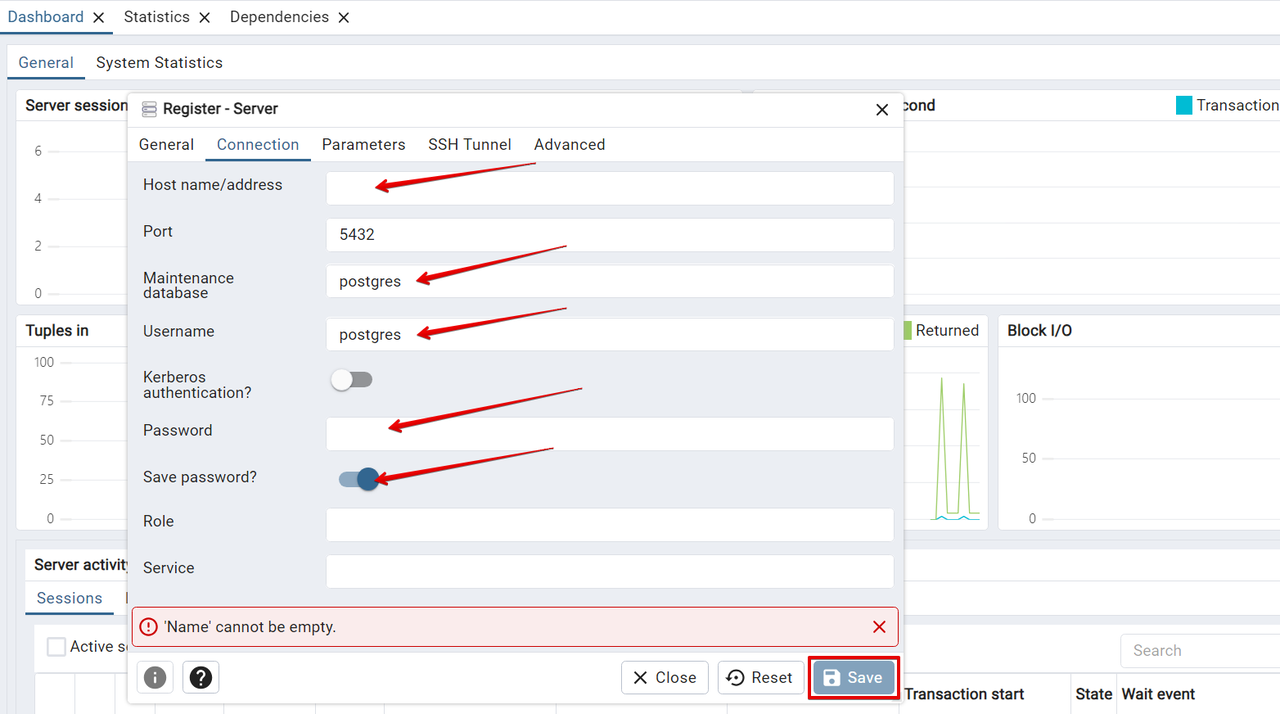
pgAdmin에서도 아이피 입력하고, 계정정보 입력하면 접속이 가능해 진다.
✅ 코드내에서 접속 테스트
node.js에서 간단히 접속 테스트 하는 코드이다.
# npm install pgconst { Client } = require('pg');
// PostgreSQL 연결 설정
const dbConfig = {
user: 'id',
password: 'xxxx',
host: 'xx.xx.xxx.xx',
port: 5432,
database: 'db',
};
// PostgreSQL 클라이언트 생성
const client = new Client(dbConfig);
// 데이터베이스 연결 함수
async function connectToDatabase() {
try {
await client.connect();
console.log('Connected to the PostgreSQL database!');
// 데이터베이스 연결 테스트 쿼리 실행
const result = await client.query('SELECT NOW()');
console.log('Database test query result:', result.rows[0]);
// 데이터베이스 연결 종료
await client.end();
console.log('Disconnected from the PostgreSQL database!');
} catch (error) {
console.error('Error connecting to the database:', error);
}
}
// 데이터베이스 연결 함수 호출
connectToDatabase();app> node db-connect.js
Connected to the PostgreSQL database!
Database test query result: { now: 2024-05-15T08:58:56.013Z }
Disconnected from the PostgreSQL database!<i>이 글은 블로그 이전으로 티스토리에서 가져온 글입니다.</i>
댓글
생각을 남겨주세요
댓글을 남기려면 로그인해 주세요.
댓글 로그인 설정이 아직 준비 중입니다.
아직 댓글이 없습니다.